How to Reset Password
Reset your Course37 password using email or mobile OTP verification
How to Reset Your Password
If you've forgotten your password, follow these steps to reset it using OTP verification.
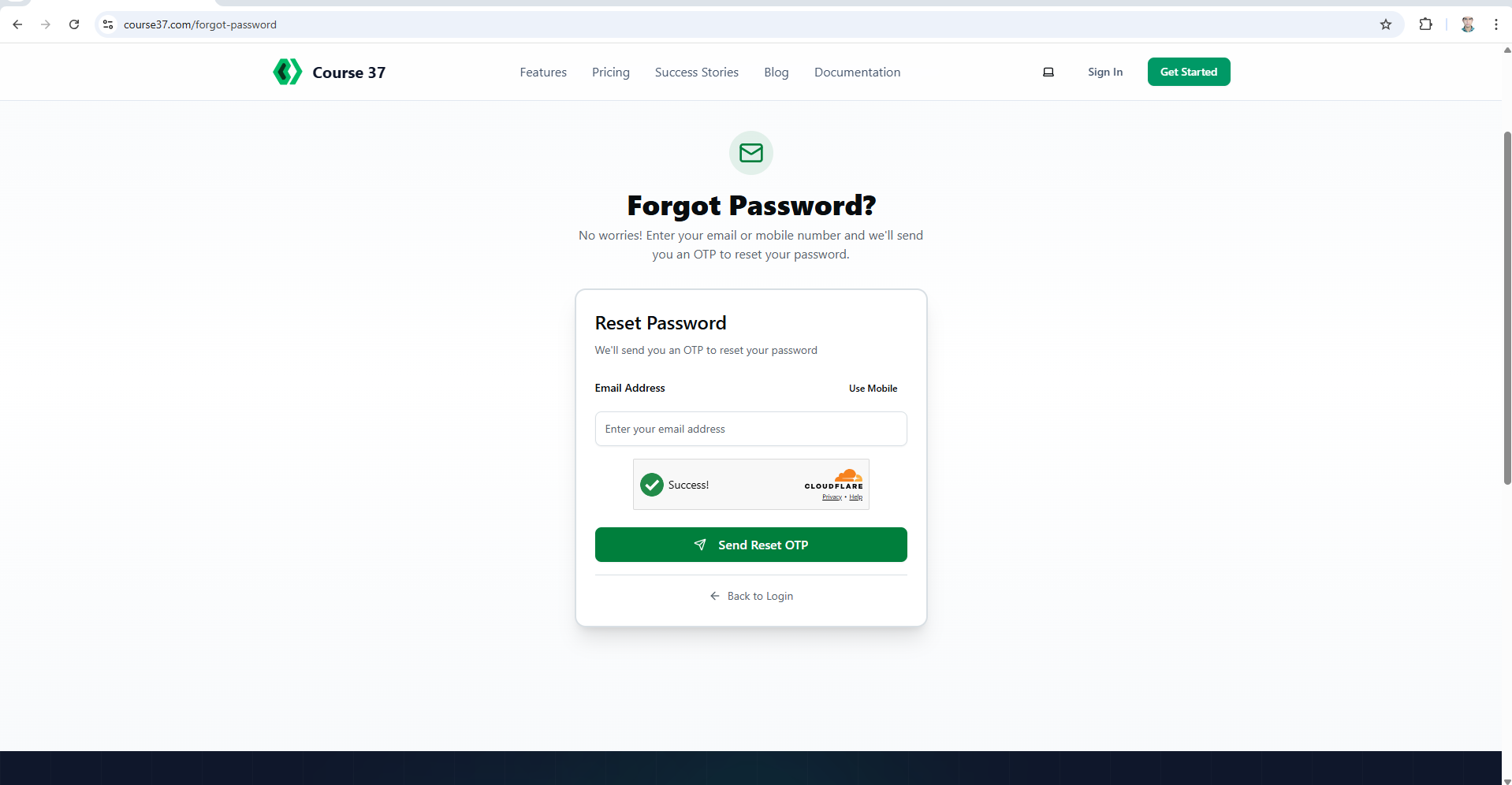
Step 1: Go to Forgot Password
- Visit course37.com/login
- Click Forgot your password? link below the Sign In button
Step 2: Enter Email or Mobile
By default, the form shows Email input.
To use Email:
- Enter your registered email address
- Click Send OTP
To use Mobile:
- Click Use Mobile toggle (top left)
- Enter your registered mobile number
- Click Send OTP
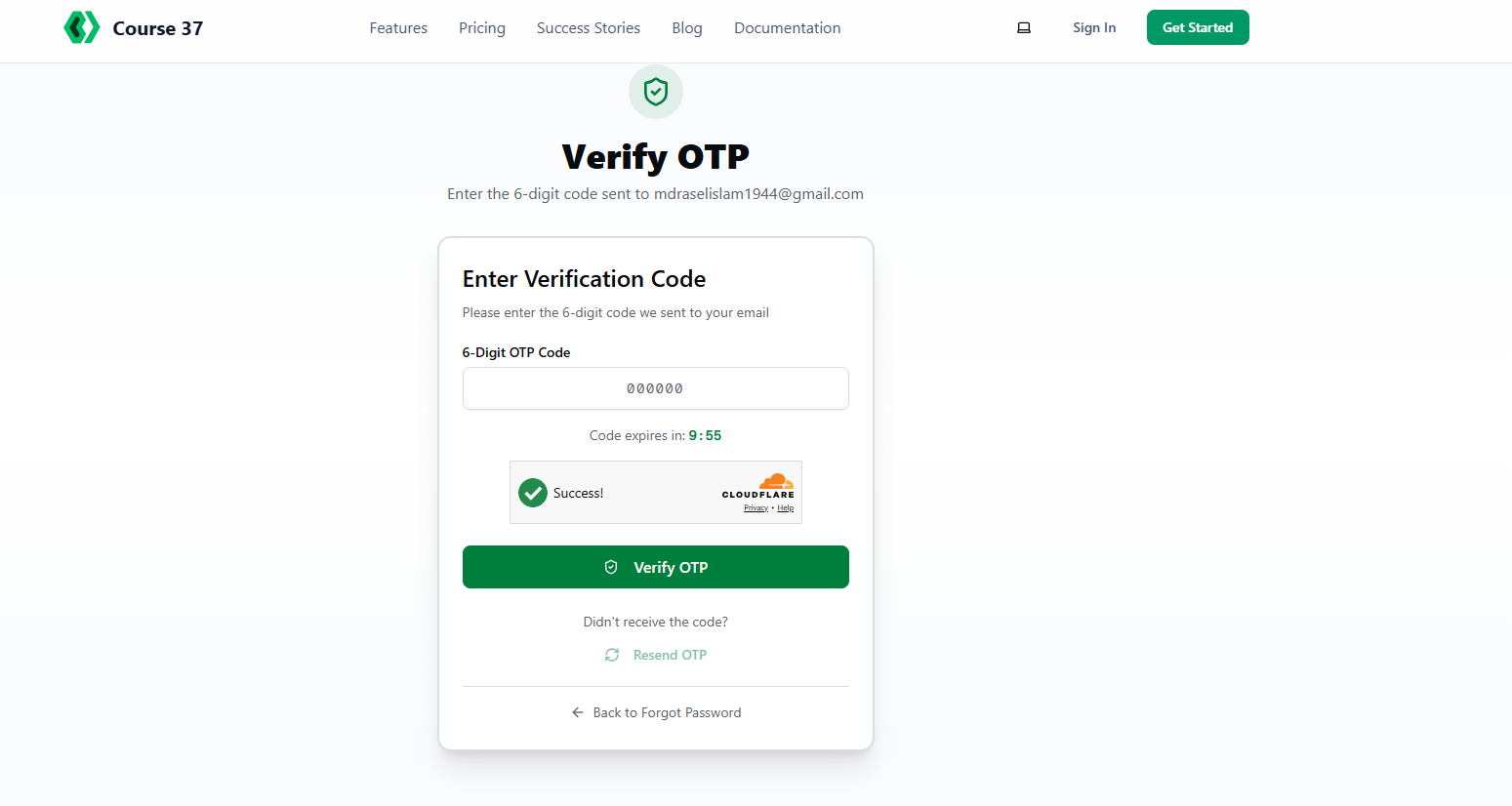
Step 3: Verify OTP
An OTP (One-Time Password) will be sent to your email or mobile.
- Check your email inbox or SMS
- Enter the 6-digit OTP in the verification field
- Click Verify
Note: OTP is valid for 5 minutes. If expired, click Resend OTP.
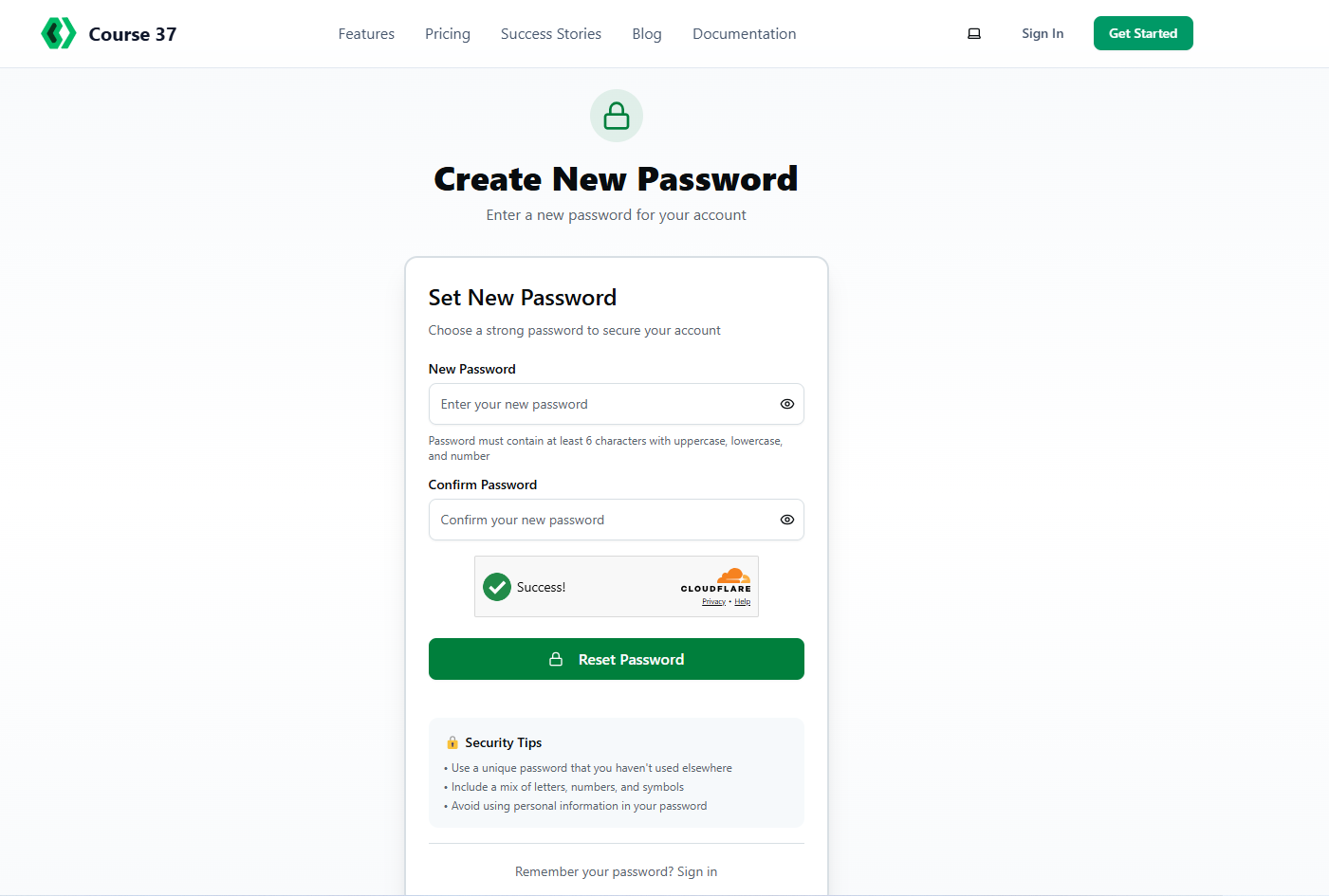
Step 4: Set New Password
- Enter your New Password
- Enter Confirm Password (must match)
- Click Reset Password
Step 5: Sign In
After successful reset, you'll be redirected to the Sign In page.
- Enter your email/mobile
- Enter your new password
- Click Sign In
Troubleshooting
| Issue | Solution |
|---|---|
| OTP not received (Email) | Check spam/junk folder. Wait 2 minutes before resending |
| OTP not received (Mobile) | Ensure correct mobile number. Check network signal |
| OTP expired | Click Resend OTP to get a new code |
| "Invalid OTP" error | Enter the OTP exactly as received. Don't include spaces |
| Password mismatch | Ensure both password fields match exactly |
passwordresetforgototprecovery
More in Getting Started
How to Sign Up as an Admin in Course37
Create your Course37 account and set up your educational organization to get started
How to Login
Access your Course37 admin dashboard with email/mobile and password or Google sign-in
How to Create an Organization
Learn about organization setup during the Course37 signup process
Organization Management
Configure your organization's basic info, domains, SEO, settings, branches, members, and view analytics